C++ Setup & First Program: Install, Compile & Run Hello World in 2026
What You Need to Write C++
To write and run C++ code you need exactly two things: a text editor and a compiler. The editor is where you write your source code — files ending in .cpp. The compiler translates your human-readable code into an executable binary that your operating system can run. Unlike Python or JavaScript, C++ is a compiled language — there is no interpreter running your code line by line.
The three major C++ compilers in 2026 are GCC (GNU Compiler Collection), Clang (part of the LLVM project), and MSVC (Microsoft Visual C++). All three support C++17 fully and C++20 almost completely. GCC and Clang also have strong C++23 support. Any of them will work for this entire course.
For the editor, we will use Visual Studio Code — it is free, cross-platform, and has excellent C++ support. But you can use any editor you like: Vim, Neovim, CLion, Sublime Text, or even Notepad++.
Installing on Windows (MSVC and MinGW-w64)
You have two paths on Windows. The recommended one depends on your goal:
Option 1: MinGW-w64 with GCC (Recommended for this course)
MinGW-w64 gives you the GCC compiler in a lightweight package without needing the full Visual Studio IDE.
# Step 1: Install MSYS2 from https://www.msys2.org/
# Download and run the installer, accept defaults

# Step 2: Open MSYS2 UCRT64 terminal and install GCC
pacman -S mingw-w64-ucrt-x86_64-gcc

# Step 3: Add to your PATH
# Add C:\msys64\ucrt64\bin to your Windows PATH environment variable

# Step 4: Verify installation — open a NEW Command Prompt or PowerShell
g++ --version
# Should show: g++ (Rev..., Built by MSYS2 project) 13.x or 14.x
Option 2: Visual Studio with MSVC
If you want the full Microsoft experience with an integrated debugger:
# Download Visual Studio 2022 Community (free) from https://visualstudio.microsoft.com/
# During installation, select "Desktop development with C++"
# This installs MSVC compiler, Windows SDK, and the full IDE

# After installation, open "Developer Command Prompt for VS 2022"
cl /EHsc hello.cpp
# cl is the MSVC compiler
Installing on macOS (Clang via Xcode)
macOS uses Clang as its default C++ compiler. You do not need the full Xcode IDE — just the command-line tools:
# Install Xcode Command Line Tools
xcode-select --install
# A popup will appear — click "Install" and wait

# Verify installation
clang++ --version
# Apple clang version 16.x (or newer)

# Note: 'g++' on macOS is actually clang++ in disguise
g++ --version
# Shows "Apple clang" — it's an alias
That is all you need. The command-line tools include Clang, the C++ standard library, Make, Git, and common Unix tools.
Installing on Linux (GCC and Clang)
Most Linux distributions include GCC. If not, install it:
# Ubuntu / Debian
sudo apt update
sudo apt install g++ build-essential

# Fedora / RHEL
sudo dnf install gcc-c++ make

# Arch Linux
sudo pacman -S gcc

# Verify
g++ --version
# g++ (Ubuntu 13.2.0-23ubuntu4) 13.2.0 or similar
To install Clang as well:
# Ubuntu / Debian
sudo apt install clang

# Verify
clang++ --version
Setting Up VS Code for C++
Visual Studio Code with the right extensions gives you autocompletion, error highlighting, integrated debugging, and one-click compilation:
# Step 1: Download VS Code from https://code.visualstudio.com/

# Step 2: Install the C/C++ extension
# Open VS Code → Extensions (Ctrl+Shift+X) → search "C/C++" → Install
# The extension by Microsoft provides IntelliSense and debugging

# Step 3 (Optional): Install Code Runner extension
# Lets you run C++ files with a single click or Ctrl+Alt+N
For the best experience, configure VS Code to use C++20 or later. Create a file .vscode/c_cpp_properties.json in your project folder:
{
    "configurations": [
        {
            "name": "Linux",
            "compilerPath": "/usr/bin/g++",
            "cppStandard": "c++20",
            "intelliSenseMode": "linux-gcc-x64"
        }
    ],
    "version": 4
}
Writing Your First C++ Program
Create a file called hello.cpp and type this:
#include <iostream>

int main() {
    std::cout << "Hello, World!" << std::endl;
    return 0;
}
This is the simplest complete C++ program. Let us compile and run it.
Compiling and Running from the Terminal
# Using GCC
g++ -std=c++20 -o hello hello.cpp
./hello
# Output: Hello, World!

# Using Clang
clang++ -std=c++20 -o hello hello.cpp
./hello
# Output: Hello, World!

# Using MSVC (Developer Command Prompt)
cl /EHsc /std:c++20 hello.cpp
hello.exe
# Output: Hello, World!
What happened: the compiler read hello.cpp, compiled it into machine code, and produced an executable called hello (or hello.exe on Windows). Running that executable printed our message to the terminal.
Anatomy of a C++ Program
Let us break down every part of our Hello World:
#include <iostream>    // 1. Preprocessor directive — includes the I/O library

int main() {            // 2. main() — the entry point of every C++ program
    std::cout << "Hello, World!" << std::endl;  // 3. Output statement
    return 0;           // 4. Return 0 — tells the OS the program succeeded
}
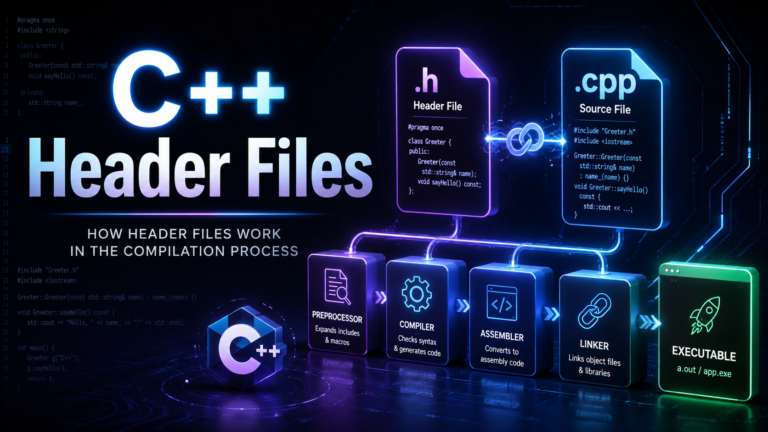
Line 1: #include <iostream> — This is a preprocessor directive. Before compilation, the preprocessor copies the contents of the <iostream> header into your file. This header declares std::cout, std::cin, std::endl, and other I/O objects.
Line 3: int main() — Every C++ program must have exactly one main function. It returns an int — traditionally 0 for success and nonzero for error. The operating system calls main() when you run your executable.
Line 4: std::cout << "Hello, World!" << std::endl; — std::cout is the standard output stream (your terminal). The << operator sends data to that stream. std::endl outputs a newline and flushes the buffer. You can also use "\n" instead of std::endl — it is faster because it does not flush.
Line 5: return 0; — Signals successful termination. In C++17 and later, the compiler inserts return 0; automatically if you omit it from main(), but writing it explicitly is good practice.
Now let us try a more interactive program:
#include <iostream>
#include <string>

int main() {
    std::string name;
    int age;

    std::cout << "What is your name? ";
    std::getline(std::cin, name);

    std::cout << "How old are you? ";
    std::cin >> age;

    std::cout << "Hello, " << name << "! You are " << age << " years old.\n";
    std::cout << "In 10 years you will be " << age + 10 << ".\n";

    return 0;
}
// Sample run:
// What is your name? Chirag
// How old are you? 25
// Hello, Chirag! You are 25 years old.
// In 10 years you will be 35.
Essential Compiler Flags
Always use these flags during development — they catch bugs and enforce modern standards:
# The gold standard for development builds
g++ -std=c++20 -Wall -Wextra -Wpedantic -Werror -g -o program program.cpp

# Flag breakdown:
# -std=c++20    Use C++20 standard (or c++17, c++23)
# -Wall         Enable most warnings
# -Wextra       Enable extra warnings beyond -Wall
# -Wpedantic    Warn about non-standard extensions
# -Werror       Treat all warnings as errors (forces you to fix them)
# -g            Include debug symbols (for GDB/LLDB debugging)
# -o program    Name the output executable "program"

# For release builds with optimization:
g++ -std=c++20 -O2 -DNDEBUG -o program program.cpp
# -O2           Optimize for speed
# -DNDEBUG      Disable assert() checks
Get in the habit of compiling with -Wall -Wextra from day one. The compiler is the best code reviewer you have — let it do its job.
Compiling Multiple Files
Real C++ projects have multiple files. Here is how that works:
// math_utils.h — Header file (declarations)
#ifndef MATH_UTILS_H
#define MATH_UTILS_H

int add(int a, int b);
int multiply(int a, int b);

#endif
// math_utils.cpp — Implementation file
#include "math_utils.h"
int add(int a, int b) {
return a + b;
}
int multiply(int a, int b) {
return a * b;
}// main.cpp — Uses the math utilities
#include <iostream>
#include "math_utils.h"
int main() {
std::cout << "3 + 4 = " << add(3, 4) << "\n";
std::cout << "3 * 4 = " << multiply(3, 4) << "\n";
return 0;
}# Compile all files together
g++ -std=c++20 -Wall -o program main.cpp math_utils.cpp
./program
# Output:
# 3 + 4 = 7
# 3 * 4 = 12
# Or compile separately and link (better for large projects):
g++ -std=c++20 -Wall -c math_utils.cpp # produces math_utils.o
g++ -std=c++20 -Wall -c main.cpp # produces main.o
g++ -o program main.o math_utils.o # link into executableOnline Compilers for Quick Testing
If you want to test C++ code without installing anything, these online compilers work great:
- Compiler Explorer (godbolt.org) — Shows your C++ code alongside the generated assembly. Invaluable for understanding performance. Supports GCC, Clang, and MSVC.
- OnlineGDB — Full IDE with debugging support in the browser.
- Wandbox — Supports multiple compiler versions including bleeding-edge GCC and Clang.
- Coliru — Minimal, fast, good for quick snippets.
Common Beginner Errors and Fixes
// ERROR 1: Forgetting the semicolon
std::cout << "Hello"    // Missing semicolon!
// Fix: Add ; at the end of every statement

// ERROR 2: Using cout without std::
cout << "Hello";         // Won't compile without 'using namespace std;'
// Fix: Use std::cout or add 'using namespace std;' (not recommended)

// ERROR 3: Wrong include
#include <string.h>      // This is the C header!
// Fix: Use #include <string> for std::string

// ERROR 4: Comparing strings with ==
char* s1 = "hello";
char* s2 = "hello";
if (s1 == s2) {}         // Compares pointers, not content!
// Fix: Use std::string which supports == for content comparison

// ERROR 5: Forgetting return type
main() {                 // Missing 'int' before main
    return 0;
}
// Fix: Always write 'int main()'
# ERROR 6: File not found during compilation
g++ hello.cpp
# error: hello.cpp: No such file or directory
# Fix: Make sure you are in the correct directory
# Use: ls (Linux/Mac) or dir (Windows) to check
# ERROR 7: Linker error — undefined reference
g++ main.cpp
# undefined reference to 'add(int, int)'
# Fix: Compile all .cpp files together
g++ main.cpp math_utils.cppPractice Exercises
Try these exercises to make sure your setup works:
// Exercise 1: Modify Hello World to print your name
// Expected: "Hello, [YourName]! Welcome to C++."

// Exercise 2: Write a program that asks for two numbers and prints their sum
// Hint: Use std::cin >> to read numbers

// Exercise 3: Write a program that converts Celsius to Fahrenheit
// Formula: F = C * 9/5 + 32
// Sample: Enter Celsius: 100 → Output: 212.00 F

// Exercise 4: Write a program that prints a box pattern
// Use std::cout to print:
// *****
// *   *
// *   *
// *****

// Exercise 5: Compile with -Wall -Wextra and fix ALL warnings in your code
Summary
You now have a working C++ development environment. You installed a compiler (GCC, Clang, or MSVC), set up VS Code, wrote your first Hello World program, and learned how to compile from the terminal. You know the anatomy of a C++ program — #include directives, the main() function, output with std::cout, and the return statement. You also learned essential compiler flags that every professional uses.
In the next lesson, we dive into variables and data types — the foundation of every C++ program.