JavaScript Events: 8 Patterns Every Developer Must Know 2026
[rank_math_toc]
JavaScript events are the nervous system of every web application. Every click, keypress, scroll, and form submission fires an event that your code can listen to and respond to. Yet most developers only scratch the surface—they call addEventListener, pass a callback, and never think about capturing phases, passive listeners, or cleanup patterns. This lesson covers everything from the fundamentals to the advanced patterns that production applications depend on.
addEventListener — The Foundation of JavaScript Events
The addEventListener method is how you attach behavior to DOM elements. Its full signature has three parameters:
element.addEventListener(eventType, handler, options);
The basics are straightforward:
const button = document.querySelector("#save-btn");

button.addEventListener("click", function(event) {
  console.log("Button clicked!");
  console.log("Event type:", event.type);       // "click"
  console.log("Target:", event.target);          // the button element
  console.log("Timestamp:", event.timeStamp);    // ms since page load
});
The Options Object
The third parameter is where the advanced control lives. It accepts an object with these properties:
element.addEventListener("click", handler, {
  once: true,      // auto-remove after first trigger
  passive: true,   // promise not to call preventDefault()
  capture: true,   // fire during capture phase (not bubble)
  signal: controller.signal  // AbortController for cleanup
});
once: true is perfect for one-time actions like initialization or first-click analytics:
document.addEventListener("DOMContentLoaded", () => {
  console.log("Page loaded — this runs once");
}, { once: true });

// Also great for modals and popups
const modal = document.getElementById("welcome-modal");
modal.querySelector(".close").addEventListener("click", () => {
  modal.remove();
}, { once: true });
passive: true tells the browser your handler won’t call preventDefault(), allowing it to optimize scrolling performance. Always use this for scroll and touch event listeners that don’t need to prevent default behavior:
// Passive — browser can scroll immediately without waiting for JS
window.addEventListener("scroll", () => {
  updateScrollProgress();
}, { passive: true });

// Non-passive — needed when you MUST prevent scroll
element.addEventListener("touchmove", (e) => {
  e.preventDefault(); // block scrolling on this element
  handleDrag(e);
}, { passive: false });
The Event Object — Your Information Source
Every event handler receives an event object packed with useful information:
document.addEventListener("click", (e) => {
  // What happened
  e.type;              // "click"
  e.timeStamp;         // ms since page load

  // Where it happened
  e.target;            // element that was actually clicked
  e.currentTarget;     // element the listener is attached to
  e.clientX, e.clientY; // mouse position (viewport)
  e.pageX, e.pageY;    // mouse position (document)

  // Modifiers
  e.shiftKey;          // was Shift held?
  e.ctrlKey;           // was Ctrl held?
  e.altKey;            // was Alt held?
  e.metaKey;           // was Cmd/Win held?

  // Control
  e.preventDefault();   // stop default browser behavior
  e.stopPropagation();  // stop event from bubbling up
});
target vs currentTarget
This distinction is critical and commonly confused:
// HTML: <div id="parent"><button id="child">Click</button></div>

document.getElementById("parent").addEventListener("click", (e) => {
  console.log("target:", e.target.id);        // "child" — what was clicked
  console.log("currentTarget:", e.currentTarget.id); // "parent" — where listener lives
});
target is the element that originated the event. currentTarget is the element that the listener is attached to. When using event delegation, target is how you identify what was actually clicked.
Event Bubbling and Capturing Phases
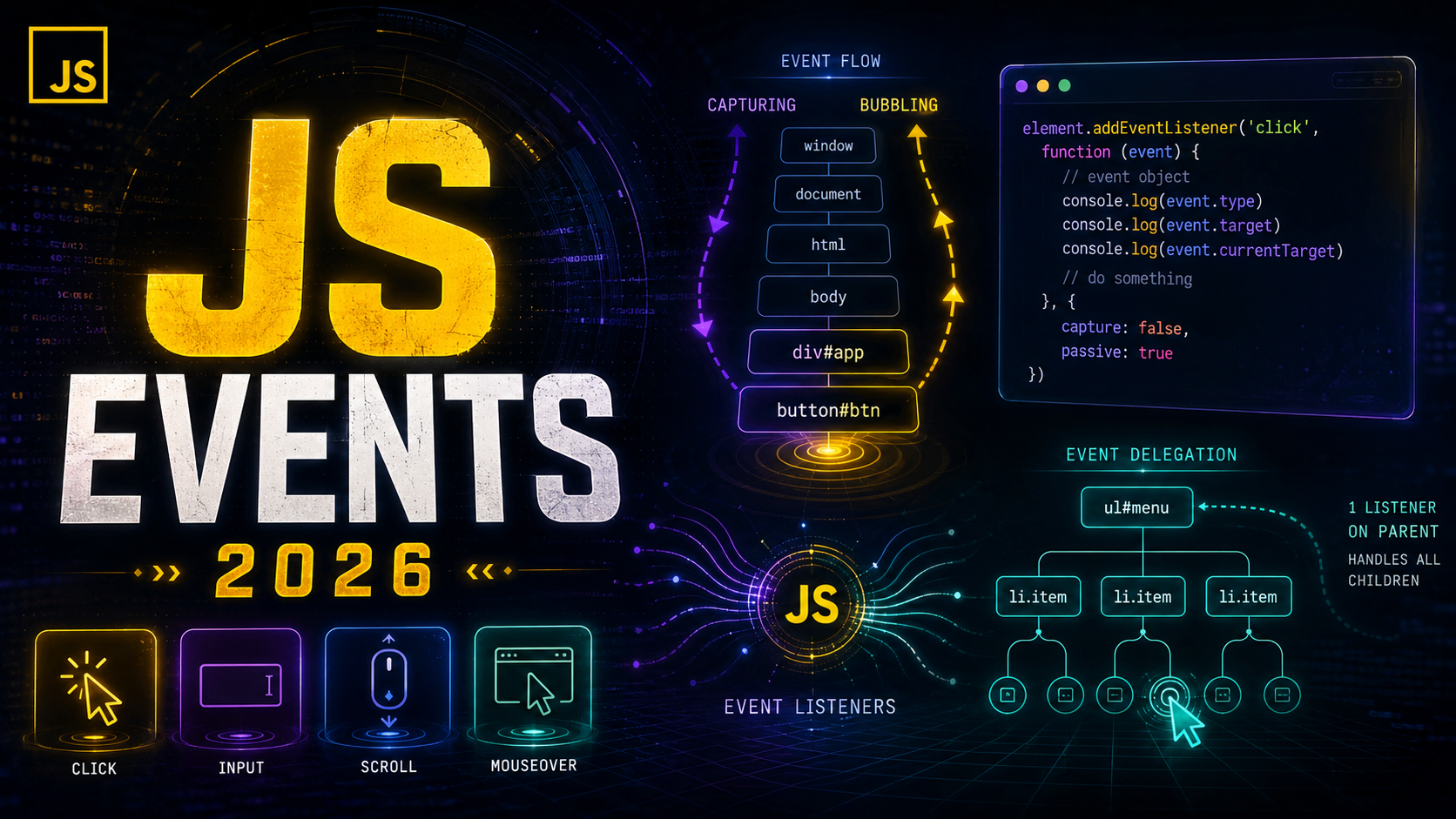
When an event fires, it actually travels through three phases:
- Capturing phase — event travels DOWN from
windowto the target - Target phase — event reaches the target element
- Bubbling phase — event travels UP from the target back to
window
// HTML: <div id="outer"><div id="inner"><button>Click</button></div></div>

// Bubbling (default) — fires bottom-up
document.getElementById("outer").addEventListener("click", () => {
  console.log("Outer — bubble");
});

document.getElementById("inner").addEventListener("click", () => {
  console.log("Inner — bubble");
});

// When button is clicked:
// "Inner — bubble"
// "Outer — bubble"

// Capturing — fires top-down
document.getElementById("outer").addEventListener("click", () => {
  console.log("Outer — capture");
}, { capture: true });

document.getElementById("inner").addEventListener("click", () => {
  console.log("Inner — capture");
}, { capture: true });

// With both registered, click order:
// "Outer — capture"   (top-down)
// "Inner — capture"   (top-down)
// "Inner — bubble"    (bottom-up)
// "Outer — bubble"    (bottom-up)
stopPropagation vs stopImmediatePropagation
// stopPropagation — prevents the event from reaching parent elements
inner.addEventListener("click", (e) => {
  e.stopPropagation();
  console.log("Only this handler runs at the inner level");
  // Outer's handler will NOT fire
});

// stopImmediatePropagation — also prevents other handlers on the SAME element
inner.addEventListener("click", (e) => {
  e.stopImmediatePropagation();
  console.log("First handler");
});

inner.addEventListener("click", () => {
  console.log("Second handler — NEVER runs");
});
Use stopPropagation sparingly. It can break event delegation patterns and make debugging difficult. Usually, preventDefault() is what you actually want.
Event Delegation — The Performance Pattern
Event delegation is one of the most important patterns in JavaScript events. Instead of attaching listeners to every child element, you attach one listener to a parent and use event.target to determine what was clicked:
// BAD: Listener on every item
document.querySelectorAll(".list-item").forEach(item => {
  item.addEventListener("click", handleClick); // 100 listeners for 100 items!
});

// GOOD: One listener on the parent (event delegation)
document.querySelector(".list").addEventListener("click", (e) => {
  const item = e.target.closest(".list-item");
  if (!item) return; // click wasn't on a list item

  handleClick(item);
});
Event delegation has three major advantages:
- Performance — one listener instead of hundreds
- Dynamic elements — works for elements added after the listener is attached
- Memory — fewer listener references for the garbage collector to track
The closest() method (covered in our Selecting Elements lesson) is the key ingredient. It handles cases where the click target is a child of the element you’re looking for:
// HTML: <button class="action"><span class="icon">🗑</span> Delete</button>

// e.target might be the <span>, not the <button>!
list.addEventListener("click", (e) => {
  const button = e.target.closest(".action");
  if (!button) return;

  const action = button.dataset.action;
  const id = button.closest("[data-id]").dataset.id;
  performAction(action, id);
});
Common Event Types You Must Know
// Mouse events
element.addEventListener("click", handler);       // left click
element.addEventListener("dblclick", handler);     // double click
element.addEventListener("contextmenu", handler);  // right click
element.addEventListener("mouseenter", handler);   // hover in (no bubble)
element.addEventListener("mouseleave", handler);   // hover out (no bubble)

// Keyboard events
document.addEventListener("keydown", (e) => {
  console.log(e.key);    // "Enter", "Escape", "a", "ArrowUp"
  console.log(e.code);   // "Enter", "Escape", "KeyA", "ArrowUp"

  // Keyboard shortcuts
  if (e.ctrlKey && e.key === "s") {
    e.preventDefault();  // prevent browser save
    saveDocument();
  }
});

// Form events (covered in depth in the Forms lesson)
form.addEventListener("submit", handler);
input.addEventListener("input", handler);  // fires on every keystroke
input.addEventListener("change", handler); // fires on blur after change
input.addEventListener("focus", handler);
input.addEventListener("blur", handler);

// Window/Document events
window.addEventListener("scroll", handler, { passive: true });
window.addEventListener("resize", handler);
document.addEventListener("DOMContentLoaded", handler);
window.addEventListener("load", handler);        // after ALL resources
window.addEventListener("beforeunload", handler); // user leaving page
The difference between DOMContentLoaded and load matters: DOMContentLoaded fires when the HTML is parsed, load fires after all images, stylesheets, and scripts are loaded. Use DOMContentLoaded for initializing JavaScript; use load only when you need all resources ready.
Custom Events — Your Own Event System
You can create and dispatch your own events, which is powerful for component communication:
// Create a custom event with data
const event = new CustomEvent("userLoggedIn", {
  detail: {
    userId: 42,
    username: "alice",
    timestamp: Date.now()
  },
  bubbles: true,     // allow bubbling
  cancelable: true   // allow preventDefault
});

// Dispatch it on any element
document.dispatchEvent(event);

// Listen for it
document.addEventListener("userLoggedIn", (e) => {
  console.log("User logged in:", e.detail.username);
  updateUI(e.detail);
});

// Practical: component communication without tight coupling
class CartWidget {
  addItem(item) {
    this.items.push(item);
    this.element.dispatchEvent(new CustomEvent("cart:updated", {
      detail: { items: this.items, total: this.getTotal() },
      bubbles: true
    }));
  }
}

// Any ancestor can listen
document.addEventListener("cart:updated", (e) => {
  document.querySelector(".cart-count").textContent = e.detail.items.length;
  document.querySelector(".cart-total").textContent = "$" + e.detail.total;
});
Custom events follow the same bubbling and capturing rules as native events. If you understand callbacks, custom events will feel natural—they’re essentially a publish-subscribe pattern built into the DOM.
Removing Event Listeners (The Anonymous Function Gotcha)
Removing listeners requires passing the exact same function reference:
// This works — named function reference
function handleClick(e) {
  console.log("Clicked!");
}

button.addEventListener("click", handleClick);
button.removeEventListener("click", handleClick); // works!

// This DOES NOT work — anonymous functions
button.addEventListener("click", function(e) {
  console.log("Clicked!");
});
button.removeEventListener("click", function(e) {
  console.log("Clicked!");
}); // FAILS — different function object!

// This also fails — arrow functions
button.addEventListener("click", (e) => console.log("Clicked!"));
button.removeEventListener("click", (e) => console.log("Clicked!"));
// FAILS — still a different function reference
For functions and their reference behavior, review our dedicated lesson. The key insight is that every function literal creates a new object in memory.
AbortController for Event Cleanup
The cleanest way to manage event listener lifecycle is AbortController. Pass its signal to addEventListener, and calling abort() removes all associated listeners at once:
const controller = new AbortController();

// Attach multiple listeners with the same signal
window.addEventListener("scroll", handleScroll, { signal: controller.signal });
window.addEventListener("resize", handleResize, { signal: controller.signal });
document.addEventListener("keydown", handleKeydown, { signal: controller.signal });

// Later: remove ALL of them with one call
controller.abort(); // all three listeners removed!

// Real-world: cleanup when a component is destroyed
class Modal {
  constructor(element) {
    this.element = element;
    this.controller = new AbortController();
    this.init();
  }

  init() {
    const opts = { signal: this.controller.signal };

    this.element.querySelector(".close").addEventListener("click", () => {
      this.destroy();
    }, opts);

    document.addEventListener("keydown", (e) => {
      if (e.key === "Escape") this.destroy();
    }, opts);

    this.element.querySelector(".overlay").addEventListener("click", () => {
      this.destroy();
    }, opts);
  }

  destroy() {
    this.controller.abort(); // clean up ALL listeners
    this.element.remove();
  }
}
This pattern eliminates memory leaks from forgotten event listeners. It’s especially valuable in single-page applications where components are created and destroyed frequently.
Debouncing and Throttling Events
Some events fire extremely frequently (scroll, resize, input). Without throttling, they can destroy performance:
// Debounce — wait until the user STOPS doing something
function debounce(fn, delay) {
  let timer;
  return function(...args) {
    clearTimeout(timer);
    timer = setTimeout(() => fn.apply(this, args), delay);
  };
}

// Search input — only fire after user stops typing for 300ms
const searchInput = document.querySelector("#search");
searchInput.addEventListener("input", debounce((e) => {
  fetchSearchResults(e.target.value);
}, 300));

// Throttle — fire at most once per interval
function throttle(fn, interval) {
  let lastTime = 0;
  return function(...args) {
    const now = Date.now();
    if (now - lastTime >= interval) {
      lastTime = now;
      fn.apply(this, args);
    }
  };
}

// Scroll handler — fire at most every 100ms
window.addEventListener("scroll", throttle(() => {
  updateScrollIndicator();
}, 100), { passive: true });
Understanding closures is essential to understanding how debounce and throttle work—the timer variable is captured in the closure scope.
Practical Pattern: Keyboard Shortcuts Manager
class ShortcutManager {
  constructor() {
    this.shortcuts = new Map();
    this.controller = new AbortController();

    document.addEventListener("keydown", (e) => {
      const combo = this.getCombo(e);
      const action = this.shortcuts.get(combo);
      if (action) {
        e.preventDefault();
        action(e);
      }
    }, { signal: this.controller.signal });
  }

  getCombo(e) {
    const parts = [];
    if (e.ctrlKey || e.metaKey) parts.push("Ctrl");
    if (e.shiftKey) parts.push("Shift");
    if (e.altKey) parts.push("Alt");
    parts.push(e.key.toUpperCase());
    return parts.join("+");
  }

  register(combo, action) {
    this.shortcuts.set(combo, action);
  }

  destroy() {
    this.controller.abort();
    this.shortcuts.clear();
  }
}

// Usage
const shortcuts = new ShortcutManager();
shortcuts.register("Ctrl+S", () => saveDocument());
shortcuts.register("Ctrl+Shift+P", () => openCommandPalette());
shortcuts.register("ESCAPE", () => closeModal());
Common Interview Questions
Q: What is event delegation and why is it useful?
A: Event delegation attaches a single listener to a parent element instead of individual listeners to each child. It uses event bubbling and event.target (plus closest()) to determine which child was acted upon. Benefits: better performance, works with dynamically added elements, less memory usage.
Q: What’s the difference between preventDefault() and stopPropagation()?
A: preventDefault() stops the browser’s default action (form submit, link navigation). stopPropagation() stops the event from traveling to parent elements. They solve completely different problems.
Q: Can you remove an anonymous event listener?
A: Not directly, because removeEventListener needs the same function reference. Use AbortController or the once option instead.
Key Takeaways
addEventListeneraccepts an options object:once,passive,capture, andsignalevent.targetis what was clicked;event.currentTargetis where the listener lives- Events bubble up by default; use
capture: truefor the capturing phase - Event delegation = one parent listener +
closest()instead of listeners on every child - Use
AbortControllerto cleanly remove multiple listeners at once - Debounce input events; throttle scroll/resize events
CustomEventenables decoupled component communication through the DOM- Always use
{ passive: true }for scroll and touch listeners that don’t needpreventDefault()
Events are how users talk to your application. Forms are the most structured form of that conversation. Head to the Forms & Validation lesson to learn how to handle user input professionally.
External Resources: