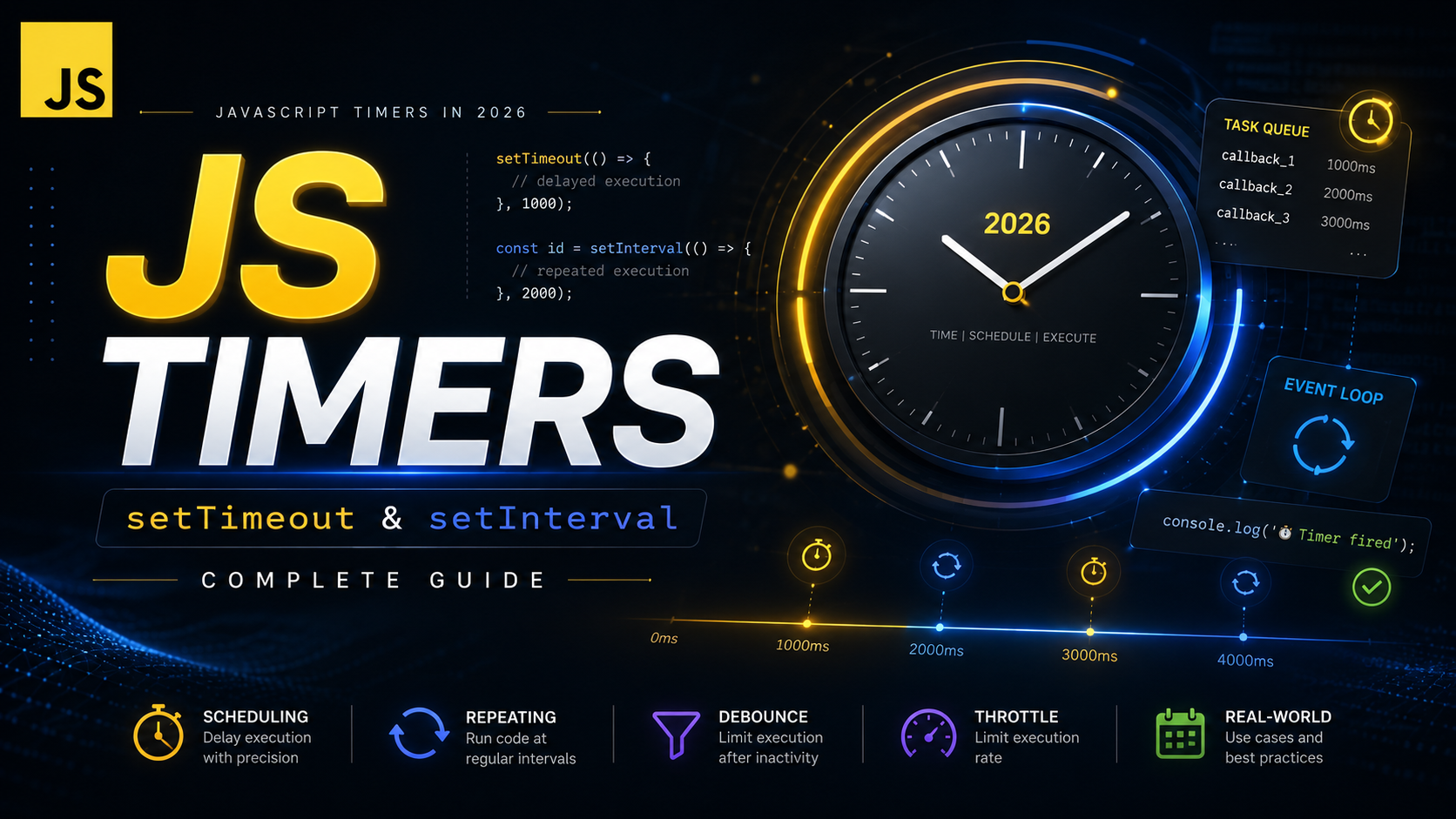
JavaScript Timers in 2026: setTimeout & setInterval Complete Guide
Table of Contents
- How JavaScript Timers Work
- setTimeout: Delayed Execution
- setInterval: Repeated Execution
- Clearing Timers
- requestAnimationFrame for Smooth Animations
- Debouncing: Delay Until Idle
- Throttling: Limit Execution Rate
- Recursive setTimeout vs setInterval
- Timers with async/await
- Timer Pitfalls & Edge Cases
- Practical Examples
- Conclusion
JavaScript timers are fundamental to controlling when code executes. From delaying an action with setTimeout to running code repeatedly with setInterval, timers power animations, polling, debouncing, auto-saves, and countless other patterns in modern web development.
In this guide, you’ll master all the timing APIs — setTimeout, setInterval, and requestAnimationFrame — plus essential patterns like debouncing and throttling that every JavaScript developer needs. We’ll also cover the tricky edge cases that catch most people off guard.
How JavaScript Timers Work
JavaScript timers don’t execute code at a precise time — they schedule a callback to be placed in the task queue after a minimum delay. The callback only runs when the event loop picks it up and the call stack is empty. This is a crucial distinction.
console.log("Start");

setTimeout(() => {
  console.log("Timer callback");
}, 0);

console.log("End");

// Output:
// Start
// End
// Timer callback (even with 0ms delay!)
Even a 0ms setTimeout doesn’t execute immediately. It queues the callback as a macrotask, which runs after the current synchronous code finishes. This behavior is defined by the event loop — Promises (microtasks) run before setTimeout callbacks (macrotasks), even if the Promise was created after the timer.
setTimeout: Delayed Execution
setTimeout(callback, delay) runs a function once after the specified delay in milliseconds. It returns a timer ID that you can use to cancel it.
// Basic usage
const timerId = setTimeout(() => {
  console.log("Executed after 2 seconds");
}, 2000);

// Passing arguments to the callback
setTimeout((name, greeting) => {
  console.log(`${greeting}, ${name}!`);
}, 1000, "Alice", "Hello");
// Logs "Hello, Alice!" after 1 second

// Common mistake: passing a function CALL instead of a reference
// WRONG — executes immediately, setTimeout gets the return value
setTimeout(console.log("oops"), 1000);

// CORRECT — passes a function reference
setTimeout(() => console.log("correct"), 1000);
The minimum delay in browsers is 4ms for nested timers (after 5 levels of nesting). For background tabs, browsers throttle timers to fire no more than once per second to save resources. These browser-imposed limits mean you should never rely on timers for precise timing.
setInterval: Repeated Execution
setInterval(callback, interval) runs a function repeatedly at the specified interval. Like setTimeout, it returns an ID for cancellation.
// Basic countdown
let seconds = 10;
const countdownId = setInterval(() => {
  console.log(`${seconds} seconds remaining`);
  seconds--;

  if (seconds < 0) {
    clearInterval(countdownId);
    console.log("Countdown complete!");
  }
}, 1000);

// Polling an API every 5 seconds
const pollId = setInterval(async () => {
  try {
    const response = await fetch("/api/status");
    const data = await response.json();

    if (data.complete) {
      clearInterval(pollId);
      handleComplete(data);
    }
  } catch (error) {
    console.error("Poll failed:", error);
  }
}, 5000);
The interval timer has a subtle behavior: it fires at the specified interval regardless of how long the callback takes. If your callback takes 300ms and the interval is 500ms, there’s only 200ms between the end of one execution and the start of the next. If the callback takes longer than the interval, executions can pile up.
Clearing Timers
Every timer can and should be cleared when no longer needed. Uncleaned timers are a common source of memory leaks, especially in single-page applications.
// clearTimeout cancels a pending setTimeout
const id = setTimeout(() => {
  console.log("This never runs");
}, 5000);
clearTimeout(id);

// clearInterval stops a repeating timer
const intervalId = setInterval(() => {
  console.log("Repeating...");
}, 1000);

// Stop after 5 seconds
setTimeout(() => clearInterval(intervalId), 5000);

// IMPORTANT: Clear timers when components unmount
class PollingWidget {
  #intervalId = null;

  start() {
    this.#intervalId = setInterval(() => {
      this.fetchData();
    }, 3000);
  }

  destroy() {
    if (this.#intervalId !== null) {
      clearInterval(this.#intervalId);
      this.#intervalId = null;
    }
  }
}
requestAnimationFrame for Smooth Animations
requestAnimationFrame(callback) is the preferred way to run animations. Unlike timers, it syncs with the browser’s paint cycle (typically 60fps), pauses when the tab is hidden, and provides a high-resolution timestamp.
// Smooth element movement
function animate(element, targetX, duration) {
  const startX = element.offsetLeft;
  const distance = targetX - startX;
  const startTime = performance.now();

  function frame(currentTime) {
    const elapsed = currentTime - startTime;
    const progress = Math.min(elapsed / duration, 1);

    // Ease-out curve for natural motion
    const eased = 1 - Math.pow(1 - progress, 3);

    element.style.left = `${startX + distance * eased}px`;

    if (progress < 1) {
      requestAnimationFrame(frame);
    }
  }

  requestAnimationFrame(frame);
}

// Usage
const box = document.querySelector(".box");
animate(box, 500, 1000); // Move to 500px over 1 second
Never use setInterval for animations. A 16ms interval (targeting 60fps) will drift, jank when the tab is busy, and waste CPU when the tab is hidden. requestAnimationFrame handles all of these problems automatically by syncing with the display's refresh rate.
// Cancel an animation frame
const rafId = requestAnimationFrame(myAnimation);
cancelAnimationFrame(rafId);

// FPS counter using requestAnimationFrame
let frameCount = 0;
let lastTime = performance.now();

function countFPS(now) {
  frameCount++;
  if (now - lastTime >= 1000) {
    console.log(`FPS: ${frameCount}`);
    frameCount = 0;
    lastTime = now;
  }
  requestAnimationFrame(countFPS);
}
requestAnimationFrame(countFPS);
Debouncing: Delay Until Idle
Debouncing ensures a function only runs after the user stops triggering it for a specified period. It's essential for search inputs, window resize handlers, and other rapid-fire events.
function debounce(fn, delay) {
  let timeoutId;

  return function (...args) {
    clearTimeout(timeoutId);
    timeoutId = setTimeout(() => {
      fn.apply(this, args);
    }, delay);
  };
}

// Search input — only fires 300ms after user stops typing
const searchInput = document.querySelector("#search");
const debouncedSearch = debounce(async (query) => {
  const results = await fetch(`/api/search?q=${query}`);
  renderResults(await results.json());
}, 300);

searchInput.addEventListener("input", (e) => {
  debouncedSearch(e.target.value);
});

// Window resize handler
const debouncedResize = debounce(() => {
  recalculateLayout();
}, 250);
window.addEventListener("resize", debouncedResize);
Without debouncing, typing "javascript" in a search box would fire 10 separate API calls — one per keystroke. With a 300ms debounce, it fires just once after the user pauses. This dramatically reduces server load and improves perceived performance.
Throttling: Limit Execution Rate
Throttling limits a function to run at most once every N milliseconds. Unlike debouncing (which waits for a pause), throttling guarantees regular execution at a controlled rate.
function throttle(fn, interval) {
  let lastTime = 0;
  let scheduledId = null;

  return function (...args) {
    const now = Date.now();
    const remaining = interval - (now - lastTime);

    if (remaining <= 0) {
      // Enough time has passed — execute now
      clearTimeout(scheduledId);
      lastTime = now;
      fn.apply(this, args);
    } else if (!scheduledId) {
      // Schedule trailing call
      scheduledId = setTimeout(() => {
        lastTime = Date.now();
        scheduledId = null;
        fn.apply(this, args);
      }, remaining);
    }
  };
}

// Scroll handler — fires at most every 100ms
const throttledScroll = throttle(() => {
  const scrollPercent =
    (window.scrollY / (document.body.scrollHeight - window.innerHeight)) * 100;
  updateProgressBar(scrollPercent);
}, 100);

window.addEventListener("scroll", throttledScroll);
Use debouncing when you want the final value (search queries, form validation). Use throttling when you want consistent updates during ongoing activity (scroll position tracking, game loops, drag events).
Recursive setTimeout vs setInterval
Recursive setTimeout is often better than setInterval for repeated tasks because it guarantees a consistent delay between executions, even if the callback takes variable time.
// setInterval: fires every 2s regardless of callback duration
// If callback takes 1.5s, only 0.5s gap between executions
setInterval(async () => {
  await fetchData(); // Takes 500ms-2000ms
}, 2000);

// Recursive setTimeout: always 2s gap AFTER callback completes
function poll() {
  setTimeout(async () => {
    await fetchData(); // Takes however long it takes
    poll();            // Schedule next only after completion
  }, 2000);
}
poll();
For async operations, recursive setTimeout is almost always the right choice. It prevents overlap — you never have two executions running simultaneously, even if the async operation is slow.
Timers with async/await
Converting timers to Promises lets you use them with async/await for cleaner sequential timing code.
// Promise-based delay
function delay(ms) {
  return new Promise(resolve => setTimeout(resolve, ms));
}

// Sequential delays with async/await
async function showNotifications() {
  showMessage("Step 1: Processing...");
  await delay(2000);

  showMessage("Step 2: Validating...");
  await delay(1500);

  showMessage("Step 3: Complete!");
}

// Retry with exponential backoff
async function fetchWithRetry(url, maxRetries = 3) {
  for (let attempt = 0; attempt < maxRetries; attempt++) {
    try {
      const response = await fetch(url);
      if (response.ok) return await response.json();
      throw new Error(`HTTP ${response.status}`);
    } catch (error) {
      if (attempt === maxRetries - 1) throw error;

      const waitTime = Math.pow(2, attempt) * 1000; // 1s, 2s, 4s
      console.log(`Retry ${attempt + 1} in ${waitTime}ms...`);
      await delay(waitTime);
    }
  }
}

// Timeout wrapper for any Promise
function withTimeout(promise, ms) {
  const timeout = new Promise((_, reject) =>
    setTimeout(() => reject(new Error("Timeout")), ms)
  );
  return Promise.race([promise, timeout]);
}

// Usage — fail if fetch takes more than 5 seconds
const data = await withTimeout(fetch("/api/slow"), 5000);
Timer Pitfalls & Edge Cases
Timers in background tabs: Browsers throttle timers in background tabs to fire at most once per second. Some browsers go further — Chrome may reduce intervals to once per minute for hidden tabs. Design your code to handle these delays gracefully.
The minimum 4ms delay: After 5 levels of nested timers, browsers enforce a minimum 4ms delay. This means recursive setTimeout(fn, 0) doesn't actually fire every 0ms — it fires every 4ms at best.
// Demonstrating minimum delay
let count = 0;
const start = performance.now();

function nest() {
  count++;
  if (count < 20) {
    setTimeout(nest, 0);
  } else {
    const elapsed = performance.now() - start;
    console.log(`20 iterations took ${elapsed.toFixed(1)}ms`);
    // Expect ~80ms+ (not 0ms) due to 4ms minimum
  }
}
setTimeout(nest, 0);
Timer ID reuse: Timer IDs are integers that increment from 1. They're never reused during a page's lifetime, so you can safely compare IDs. However, clearTimeout and clearInterval are interchangeable — calling clearTimeout on an interval ID works (and vice versa), though this isn't recommended for readability.
Memory leaks: Forgetting to clear timers when DOM elements are removed is a top source of leaks in SPAs. Always clear timers in cleanup or destruction logic.
Practical Examples
Auto-Logout After Inactivity
class InactivityTimer {
  #timeoutId = null;
  #timeout;
  #onTimeout;

  constructor(timeoutMs, onTimeout) {
    this.#timeout = timeoutMs;
    this.#onTimeout = onTimeout;

    const events = ["mousedown", "keydown", "scroll", "touchstart"];
    events.forEach(event => {
      document.addEventListener(event, () => this.reset(), { passive: true });
    });

    this.reset();
  }

  reset() {
    clearTimeout(this.#timeoutId);
    this.#timeoutId = setTimeout(() => {
      this.#onTimeout();
    }, this.#timeout);
  }

  destroy() {
    clearTimeout(this.#timeoutId);
  }
}

// Log out after 15 minutes of inactivity
const timer = new InactivityTimer(15 * 60 * 1000, () => {
  alert("Session expired due to inactivity");
  window.location.href = "/logout";
});
Typewriter Effect
async function typewriter(element, text, speed = 50) {
  element.textContent = "";
  for (const char of text) {
    element.textContent += char;
    await new Promise(r => setTimeout(r, speed));
  }
}

const heading = document.querySelector("h1");
typewriter(heading, "Welcome to SudoFlare!", 80);
Conclusion
JavaScript timers are deceptively simple on the surface but have nuances that matter in production code. You've learned setTimeout for one-off delays, setInterval for repeated execution, requestAnimationFrame for smooth animations, and essential patterns like debouncing and throttling that control execution rate.
The key takeaways: always clean up timers to prevent memory leaks, prefer recursive setTimeout over setInterval for async work, use requestAnimationFrame for visual animations, and wrap timers in Promises for cleaner async flow. These patterns show up constantly in real-world JavaScript development.
Next, we'll explore Web Workers for running JavaScript code off the main thread.